VintaSoft Barcode .NET SDK 16.0: Documentation for Web developer
In This Topic
Recognize barcodes in image in ASP.NET MVC5 application
In This Topic
This tutorial shows how to create a blank ASP.NET MVC5 application in Visual Studio .NET 2019 and recognize barcodes in image in ASP.NET MVC5 application.

Here are steps, which must be done:
  1. Create a blank ASP.NET MVC5 application.

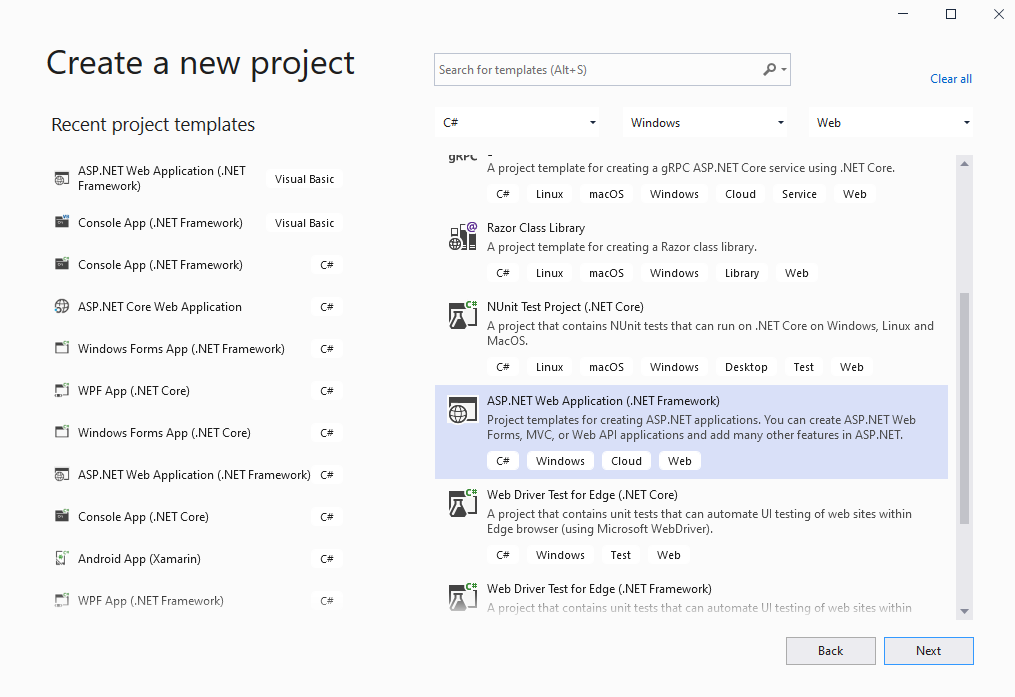
    Open Visual Studio .NET 2019 and create a new project, of ASP.NET Web application type, and configure the project to use .NET Framework 4.7.2:

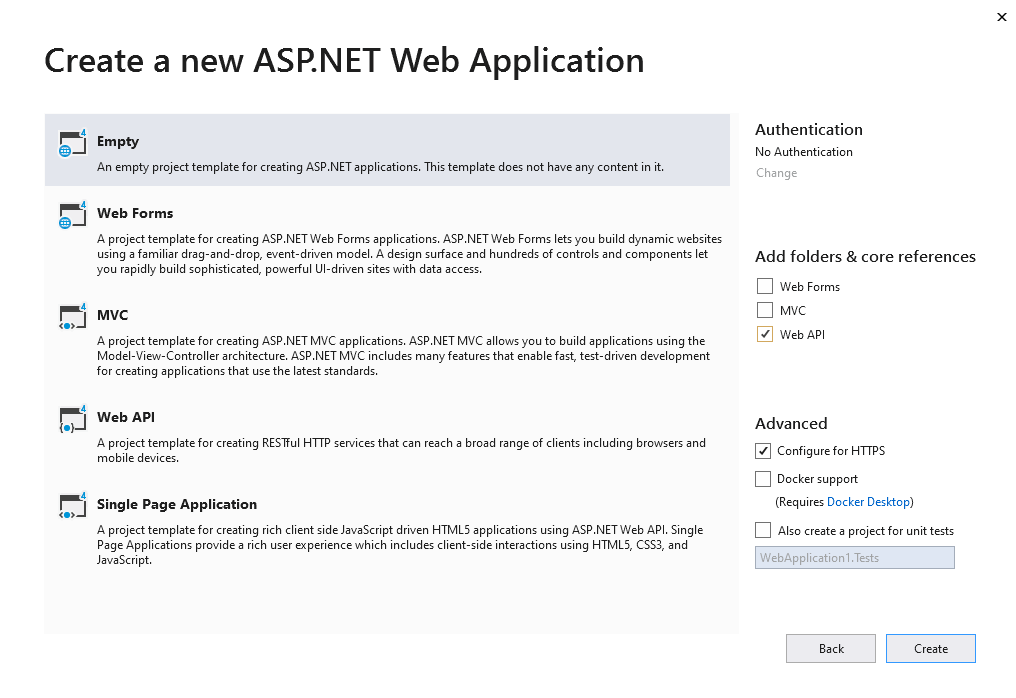
    Select the "Empty" template for ASP.NET Web application and configure the project to use Web API:

  2. Server side: Add references to the Vintasoft nuget-packages to ASP.NET MVC5 application.

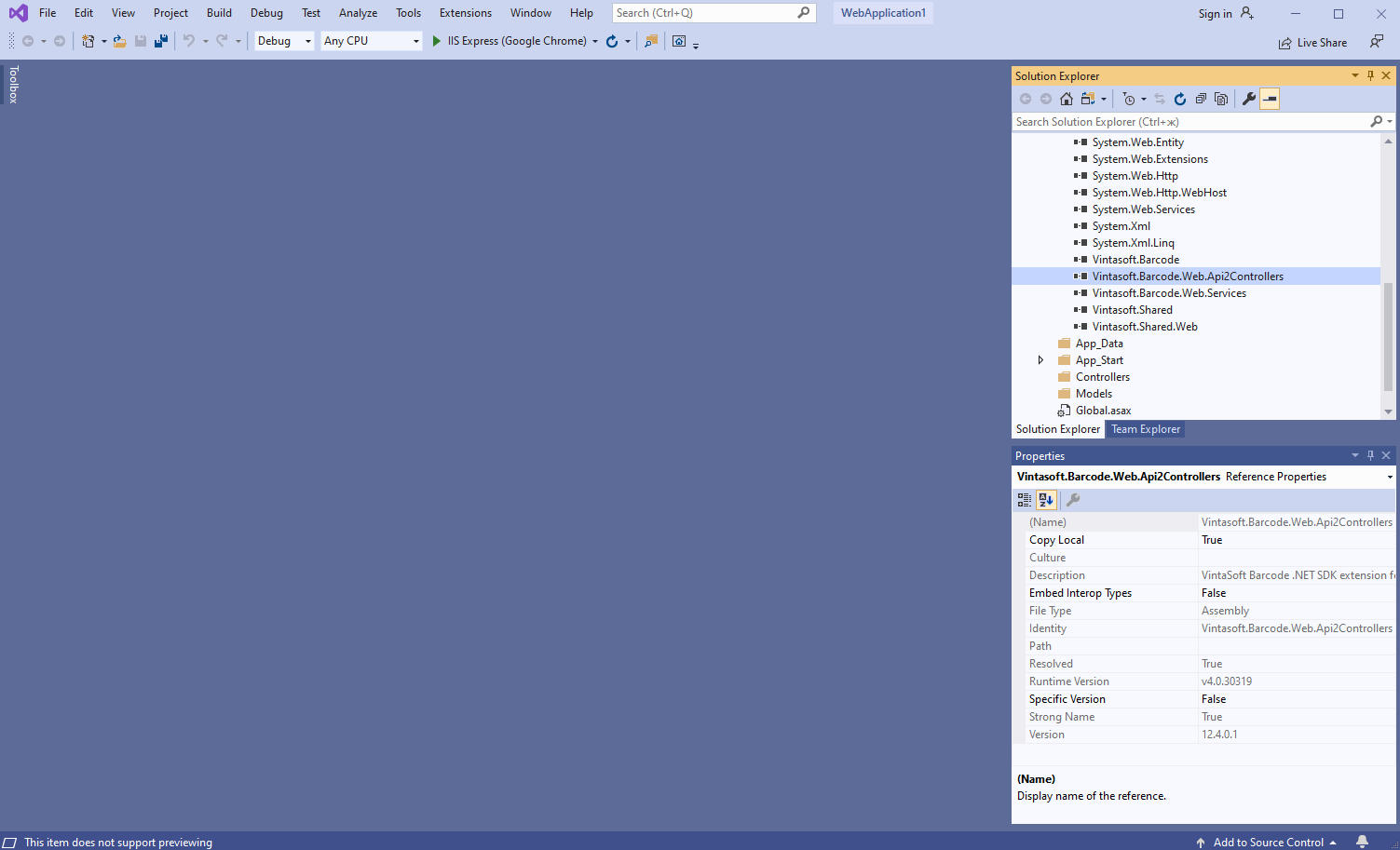
    Add references to the nuget-packages Vintasoft.Barcode and Vintasoft.Barcode.Web.Api2Controllers to the ASP.NET MVC5 application.

  3. Server side: Add Web API 2 controller, which allows to recognize barcodes in image, to ASP.NET MVC5 application.

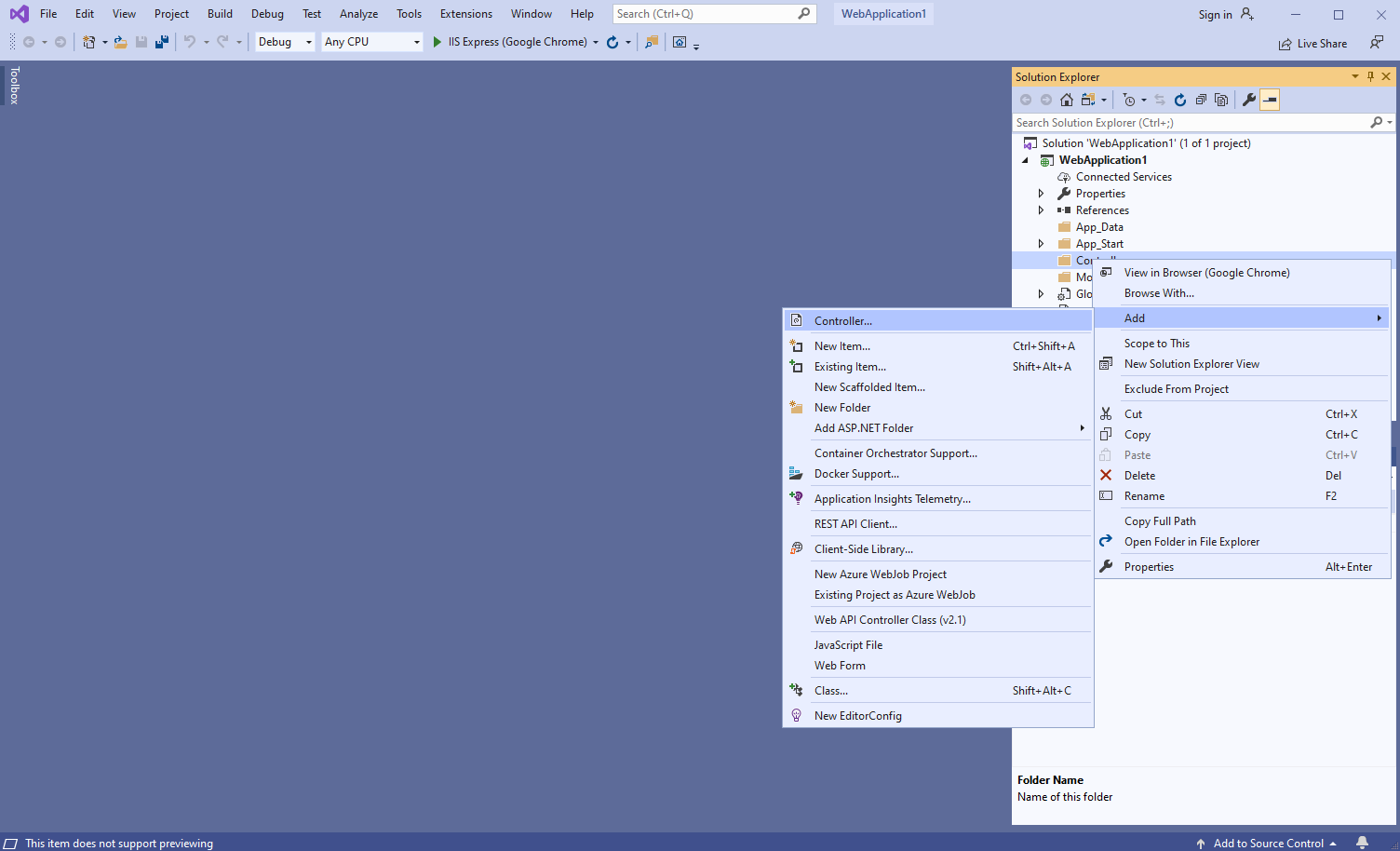
    • Press the right mouse button on the "Controllers" folder and select the "Add => Controller..." menu from context menu
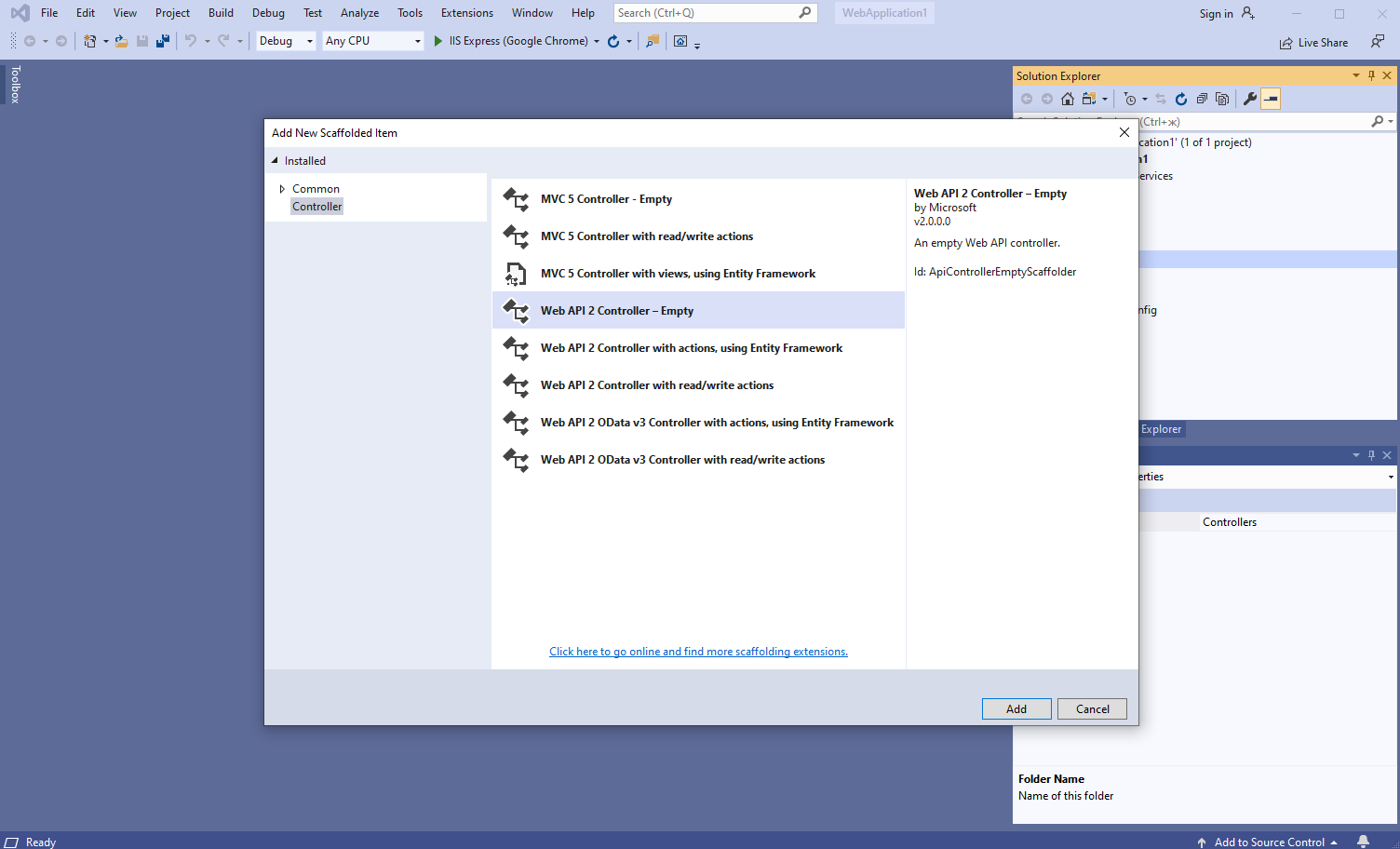
    • Select "Web API 2 Controller - Empty" template, set the controller name to the "MyVintasoftBarcodeApiController" and press the "Add" button
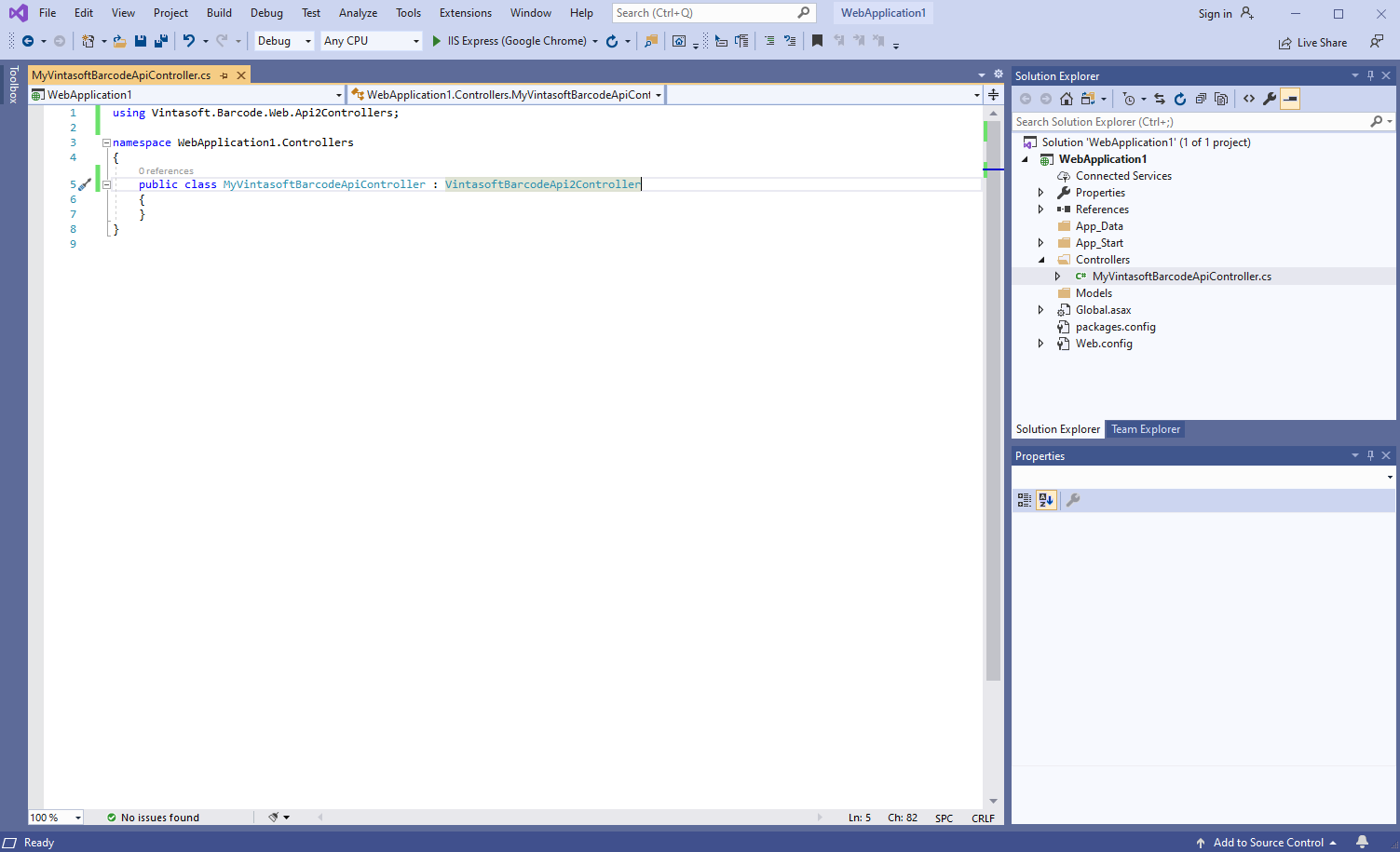
    • Specify that MyVintasoftBarcodeApiController class is derived from Vintasoft.Barcode.Web.Api2Controllers.VintasoftBarcodeApi2Controller class

      Here are C# source codes of MyVintasoftBarcodeApiController class:
      using Vintasoft.Barcode.Web.Api2Controllers;
      
      namespace WebApplication1.Controllers
      {
          public class MyVintasoftBarcodeApiController : VintasoftBarcodeApi2Controller
          {
          }
      }
      
      
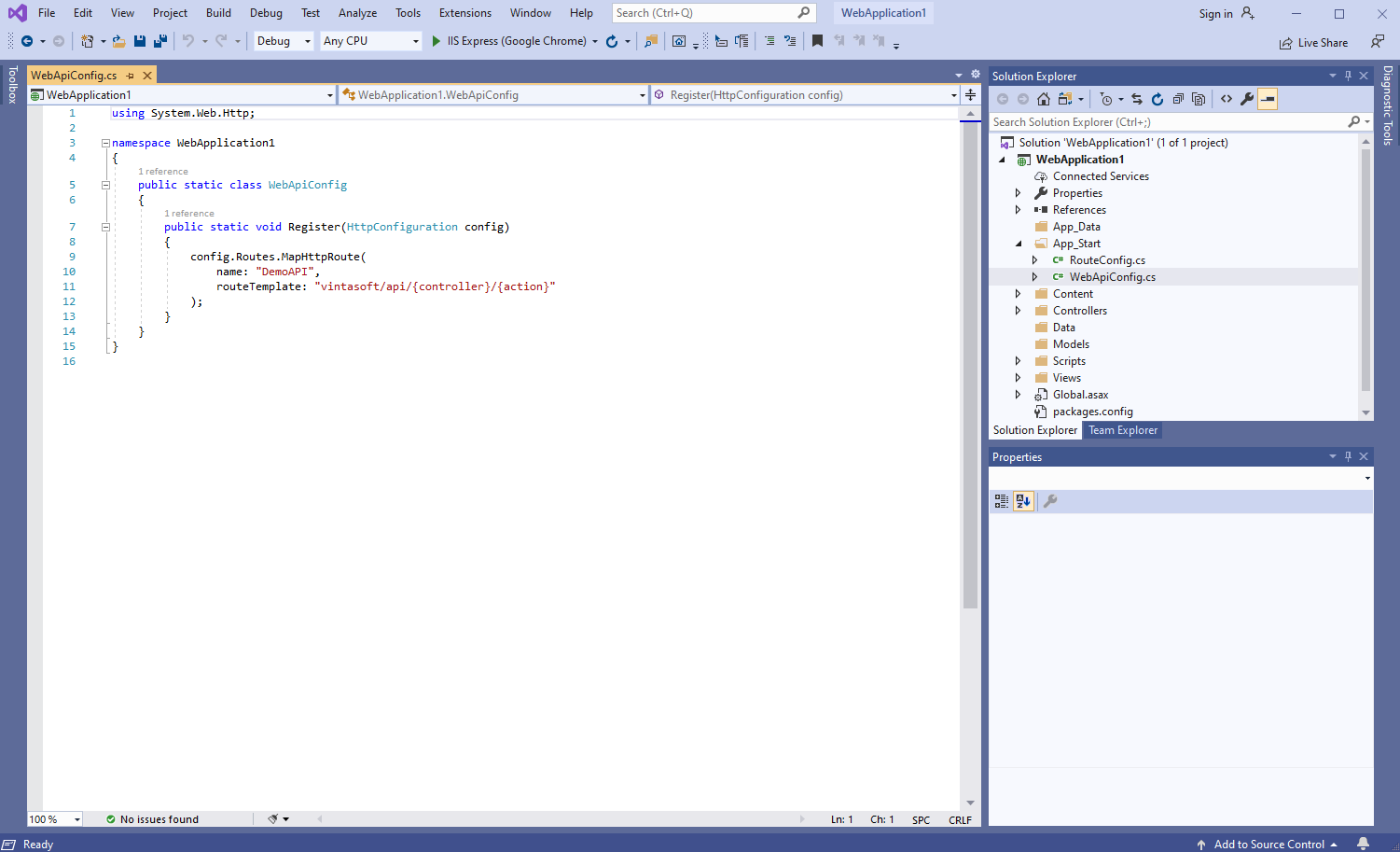
    • Open "App_Start\WebApiConfig.cs" file and check that ASP.NET MVC application correctly registers route for Web API controller.

      Here are C# source codes of WebApiConfig.cs file:
      using System.Web.Http;
      
      namespace WebApplication1
      {
          public static class WebApiConfig
          {
              public static void Register(HttpConfiguration config)
              {
                  config.Routes.MapHttpRoute(
                      name: "DemoAPI",
                      routeTemplate: "vintasoft/api/{controller}/{action}"
                  );
              }
          }
      }
      
      
  4. Server side: Create ASP.NET MVC 5 controller for web view that will display barcode recognition result.

    • Press the right mouse button on the "Controllers" folder and select the "Add => Controller..." menu from context menu
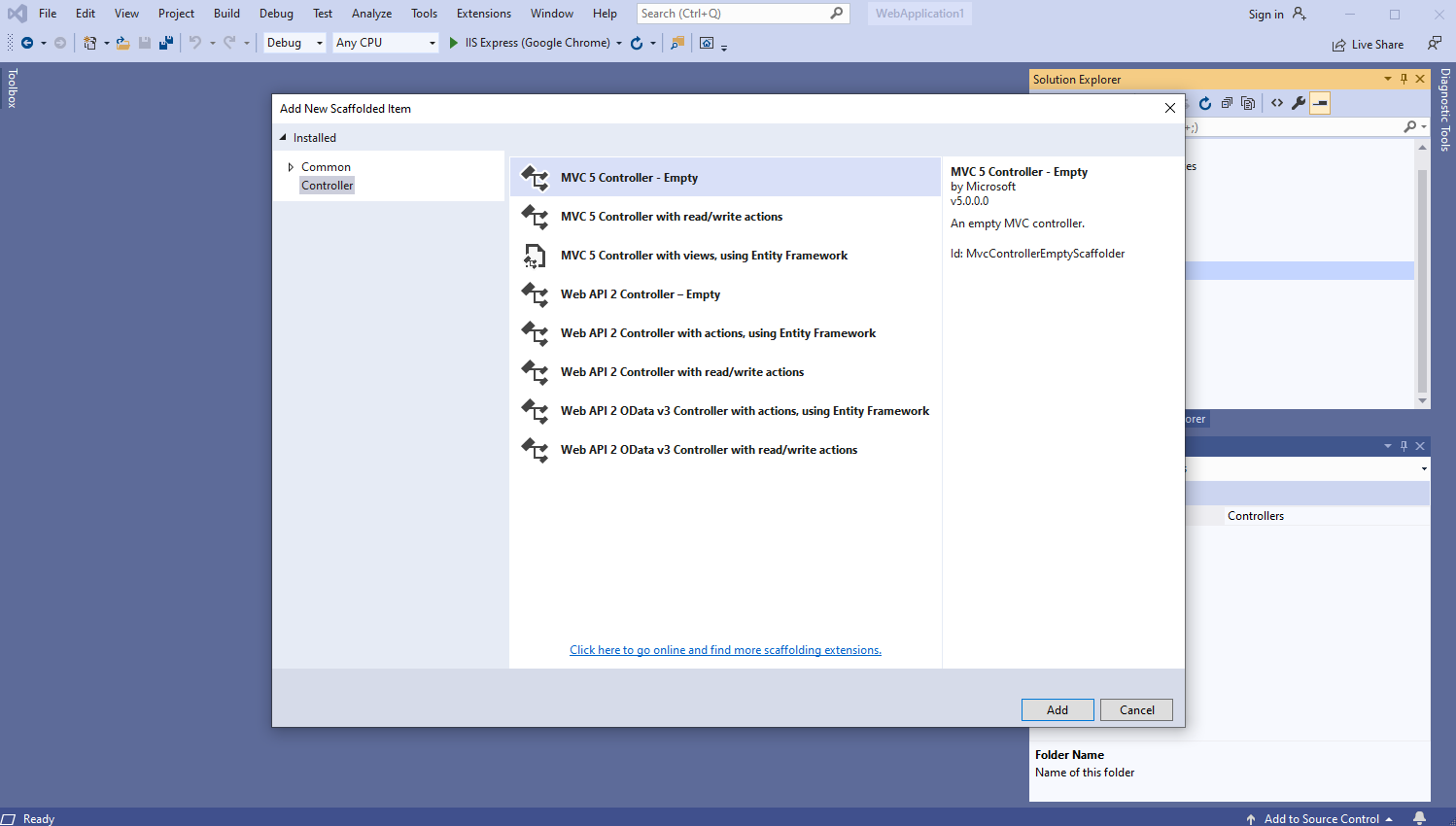
    • Select "MVC 5 Controller - Empty" template, set the controller name to the "DefaultController" and press the "Add" button
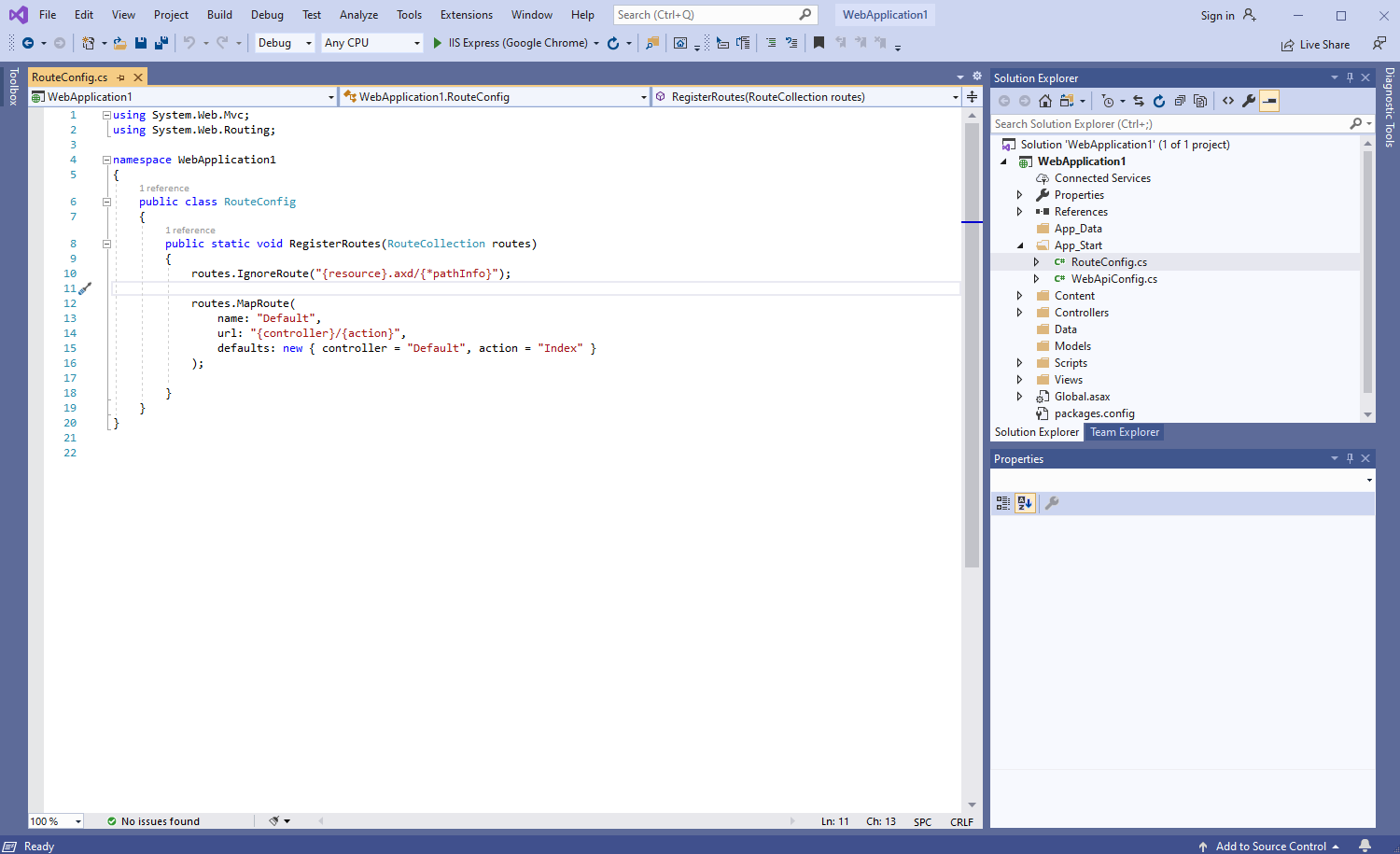
    • Open "App_Start\RouteConfig.cs" file and check that ASP.NET MVC application correctly registers route for MVC controller.

      Here are C# source codes of RouteConfig.cs file:
      using System.Web.Mvc;
      using System.Web.Routing;
      
      namespace WebApplication1
      {
          public class RouteConfig
          {
              public static void RegisterRoutes(RouteCollection routes)
              {
                  routes.IgnoreRoute("{resource}.axd/{*pathInfo}");
      
                  routes.MapRoute(
                      name: "Default",
                      url: "{controller}/{action}",
                      defaults: new { controller = "Default", action = "Index" }
                  );
      
              }
          }
      }


  5. Server side: Check global configuration of ASP.NET MVC5 application.

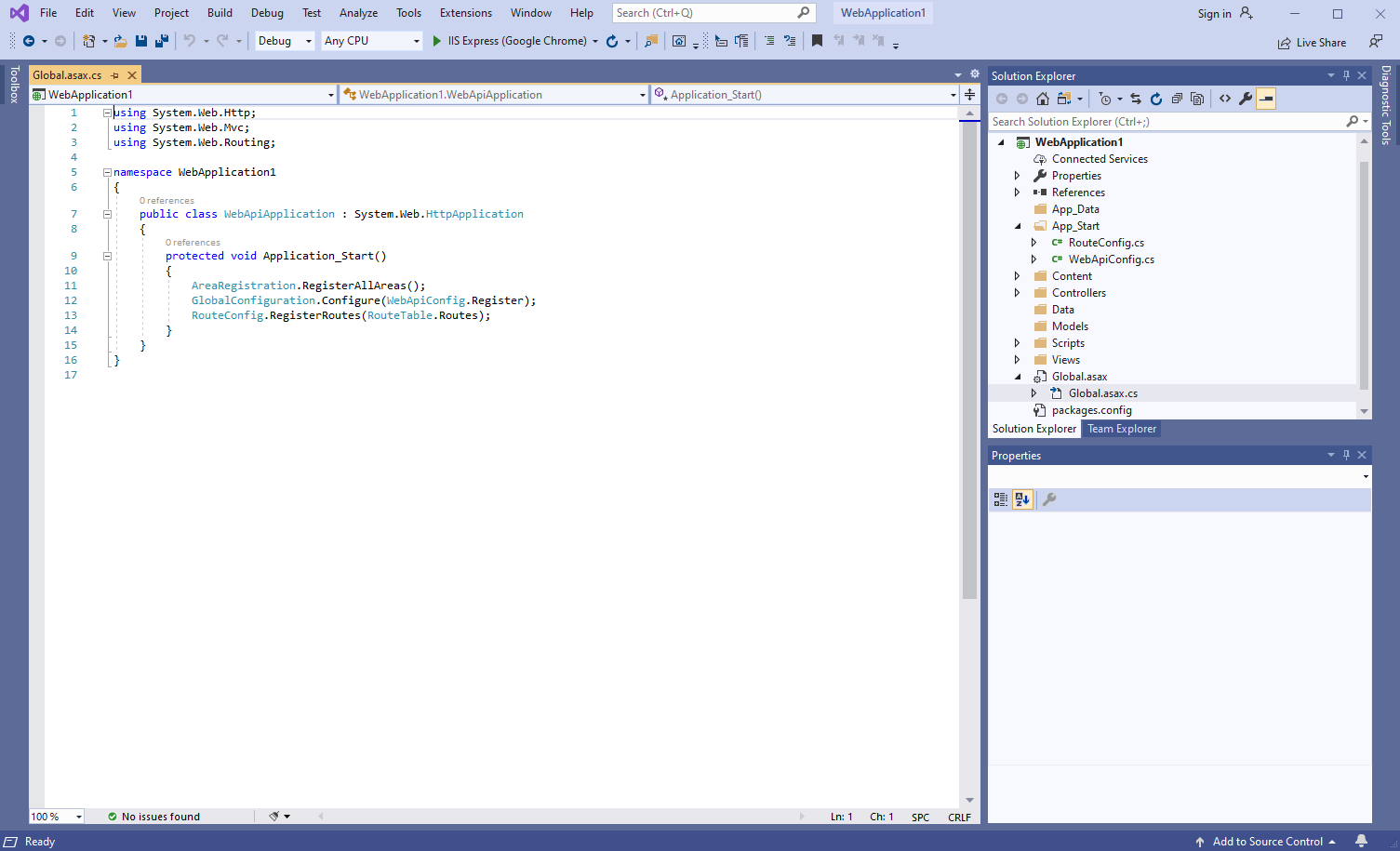
    Open "Global.asax.cs" file and check that "Application_Start" method registers all areas in ASP.NET MVC application, configures global HTTP configuration for ASP.NET application, registers routes for ASP.NET MVC application.

    Here are C# source codes of Global.asax.cs file:
    using System.Web.Http;
    using System.Web.Mvc;
    using System.Web.Routing;
    
    namespace WebApplication1
    {
        public class WebApiApplication : System.Web.HttpApplication
        {
            protected void Application_Start()
            {
                AreaRegistration.RegisterAllAreas();
                GlobalConfiguration.Configure(WebApiConfig.Register);
                RouteConfig.RegisterRoutes(RouteTable.Routes);
            }
        }
    }
    
    
  6. Client side: Create web view for displaying barcode recognition results.

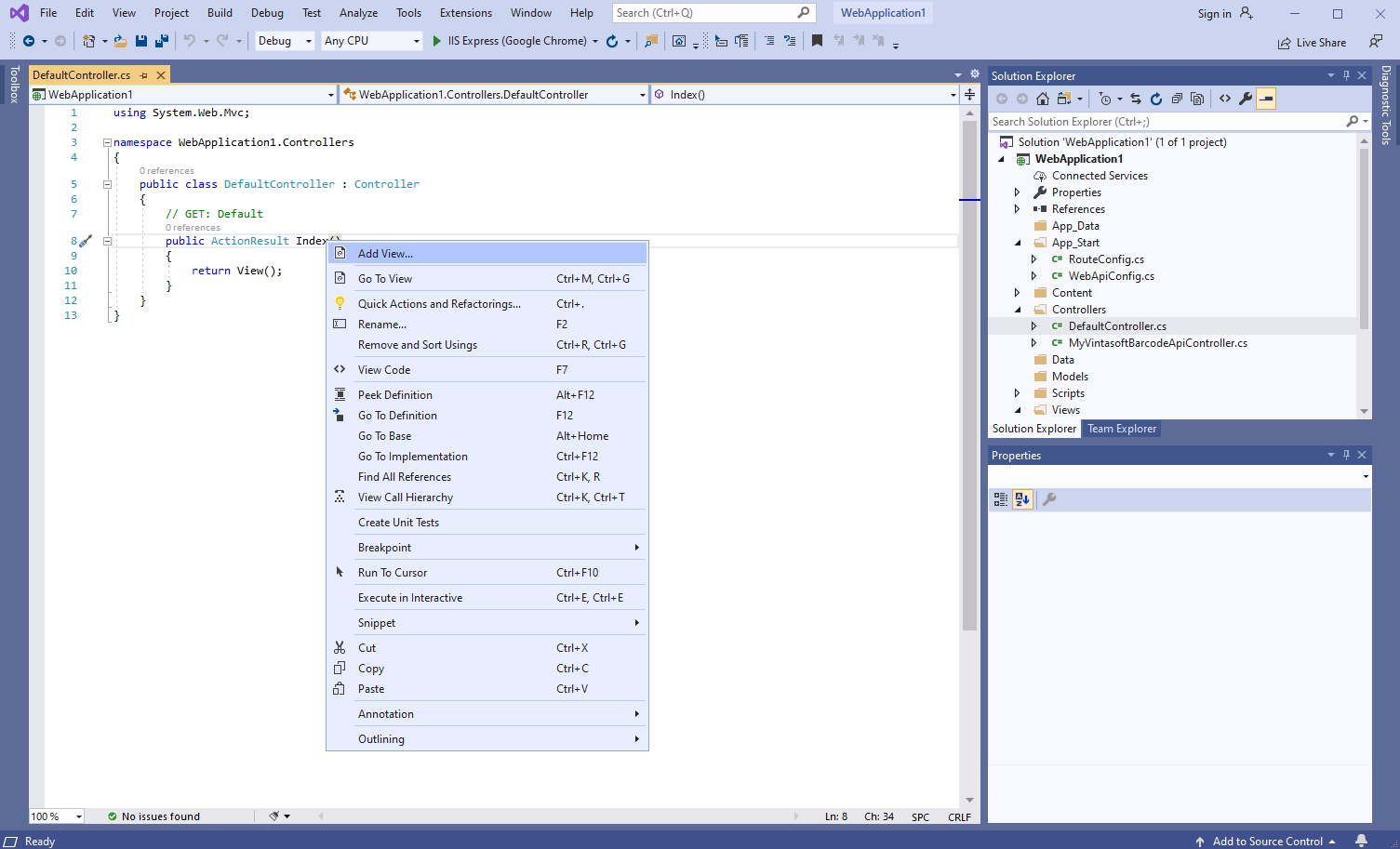
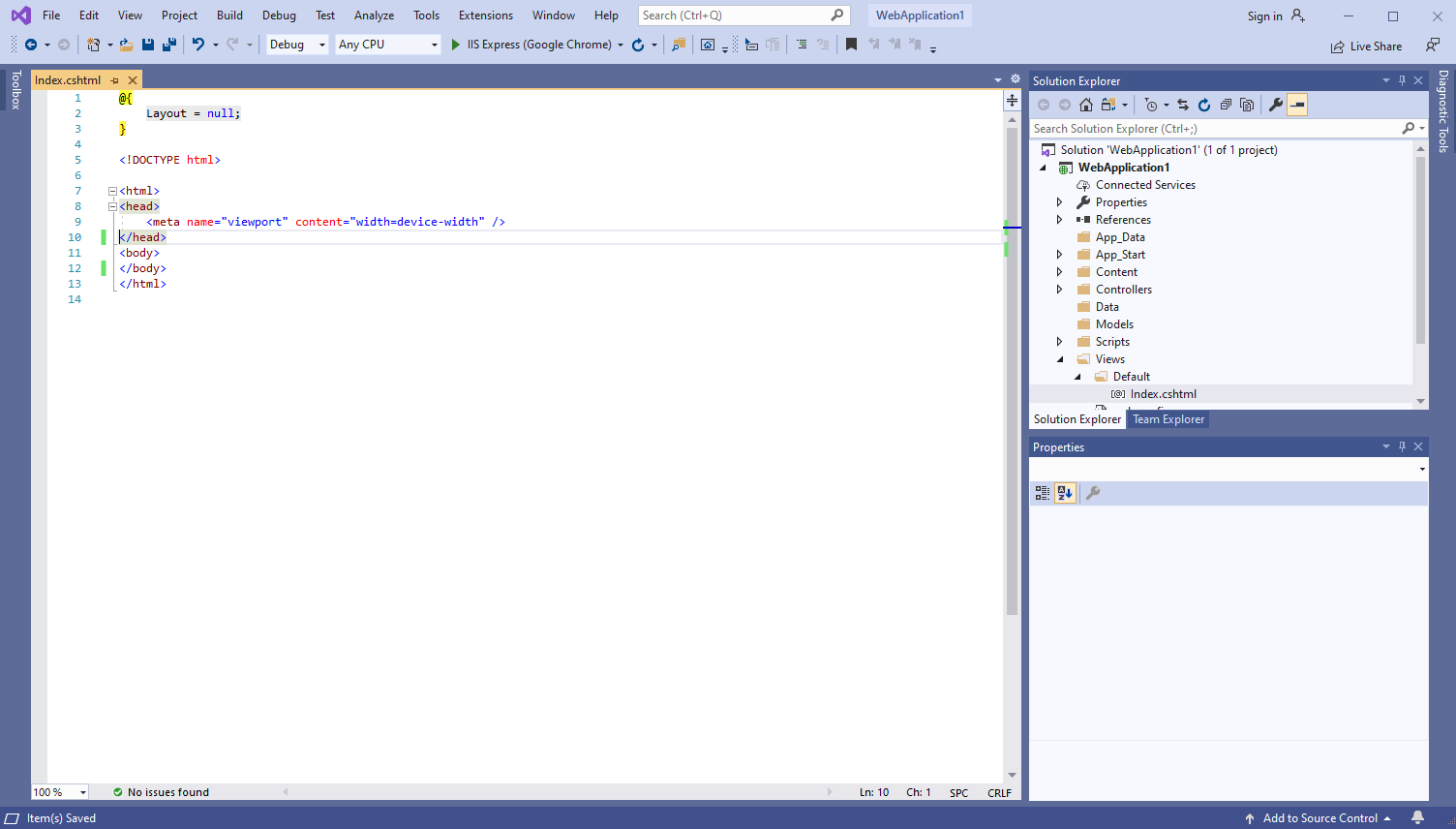
    • Open "DefaultController.cs" file, press the right mouse button on the "Index" method of DefaultController class and select the "Add View..." menu from context menu
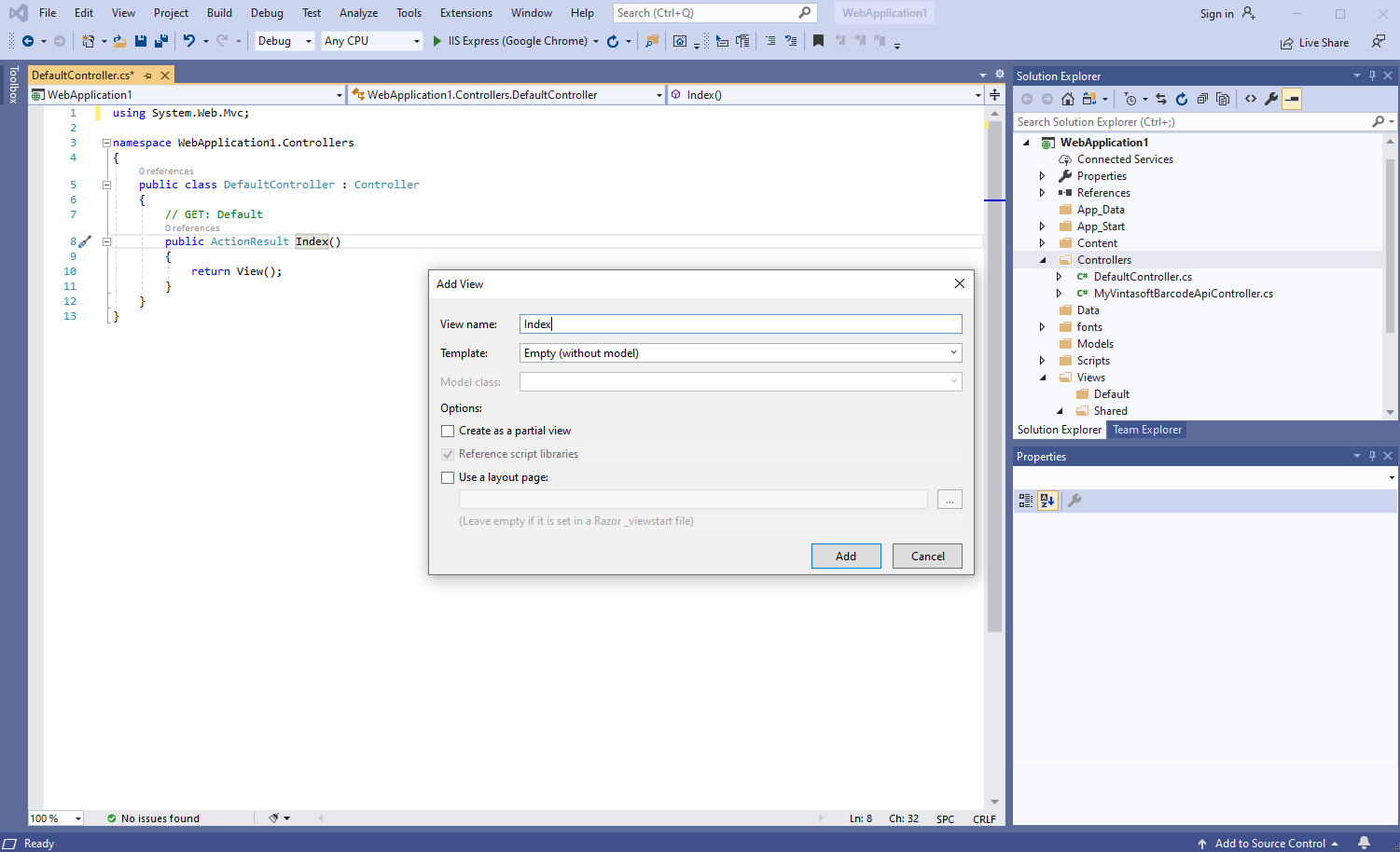
    • Set view name to "Index", uncheck "Use a layout page" checkbox and press the "Add" button => "Views\Default\Index.cshtml" file will be created
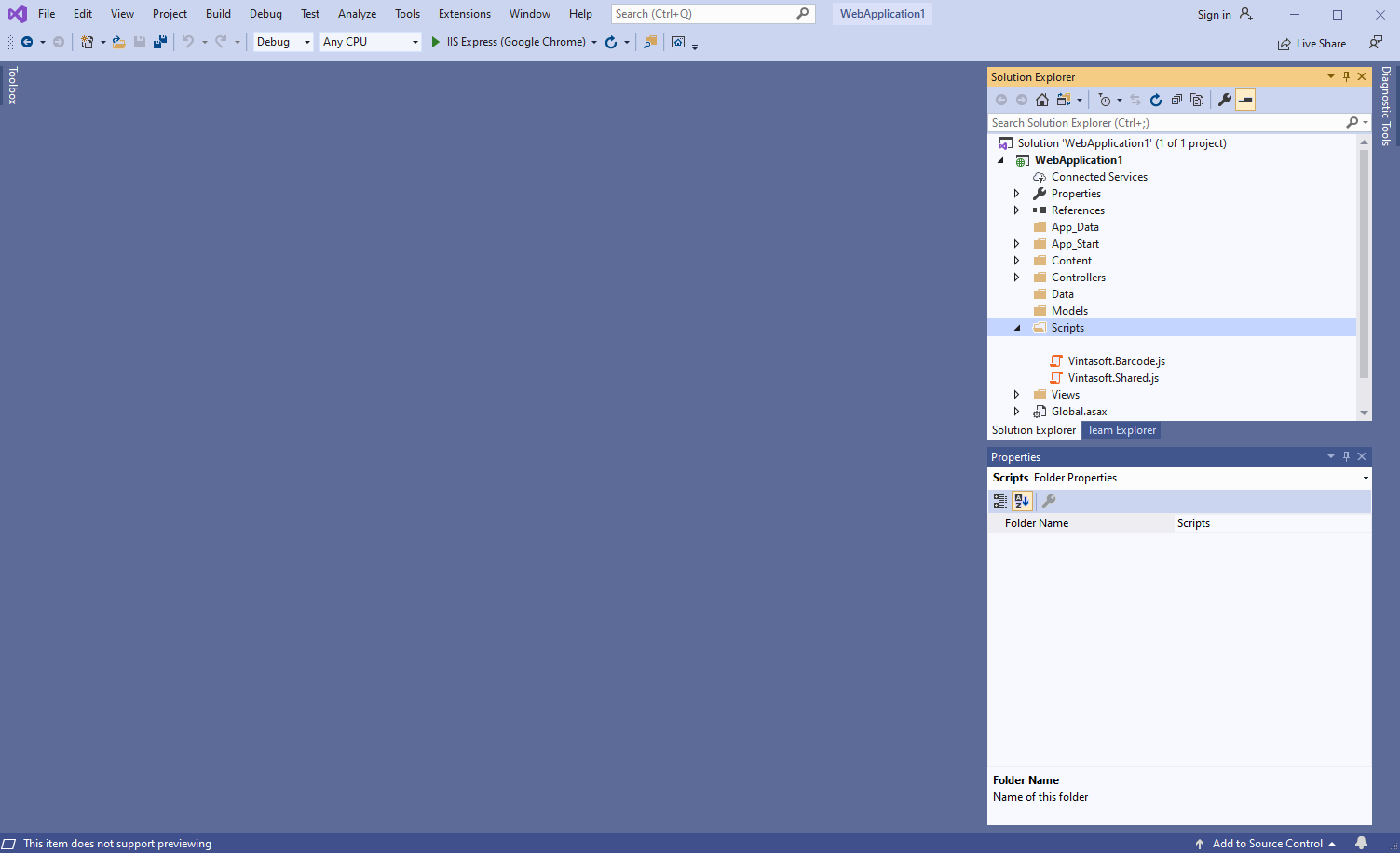
  7. Client side: Add Vintasoft JavaScript files to the project.

  8. Client side: Add JavaScript code, which recognizes barcodes in image and displays barcode recognition results, to the web view.

    • Create folder "UploadedImageFiles\SessionID" and copy PNG-image file with barcodes from Github to the folder. We will recognize barcodes in this image.
    • Open web view - file "Views\Default\Index.cshtml".
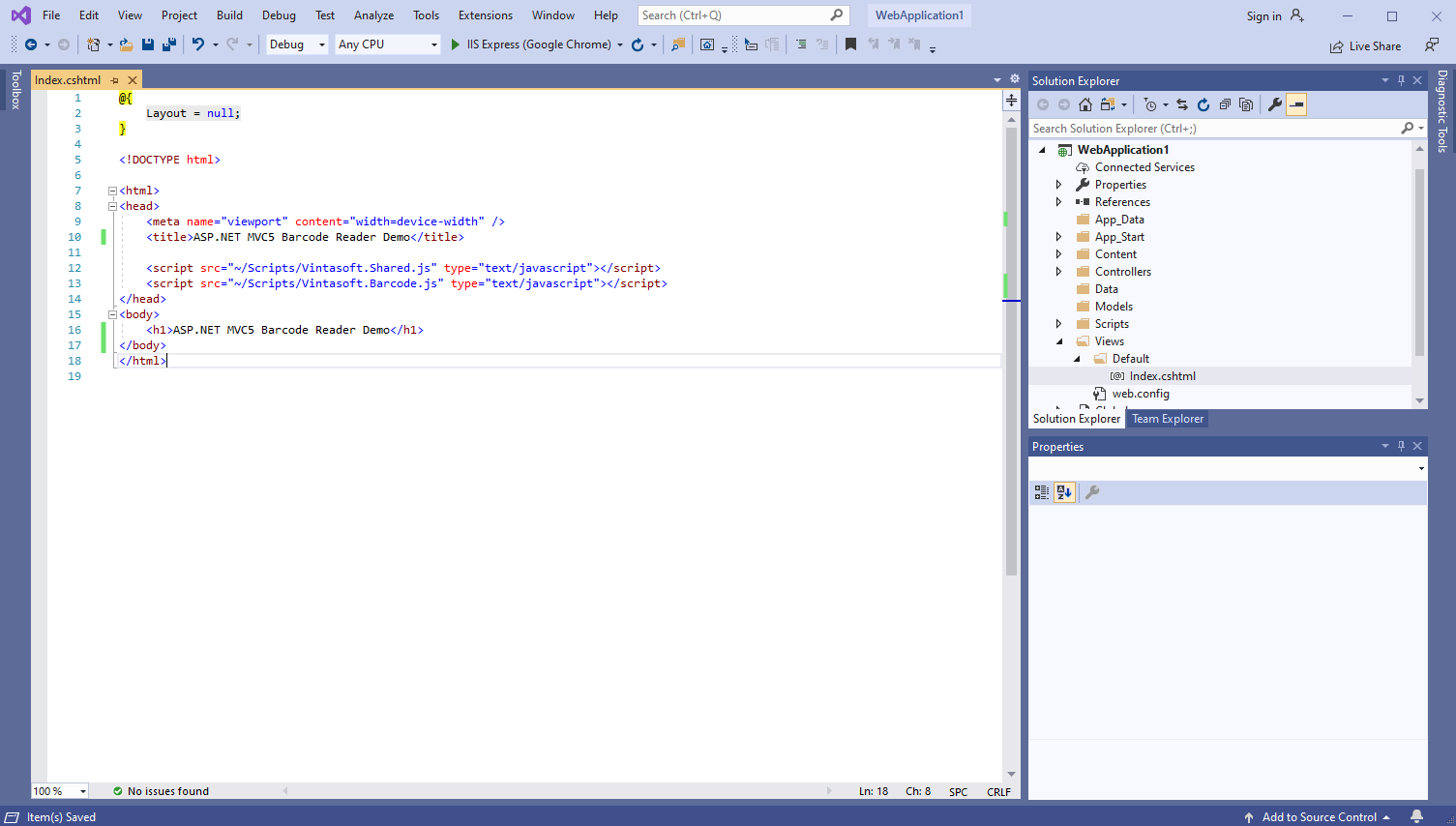
    • Add references to Vintasoft JavaScript files:

      Here is HTML code that adds references to Vintasoft JavaScript files:
      <script src="~/Scripts/Vintasoft.Shared.js" type="text/javascript"></script>
      <script src="~/Scripts/Vintasoft.Barcode.js" type="text/javascript"></script>
      
      
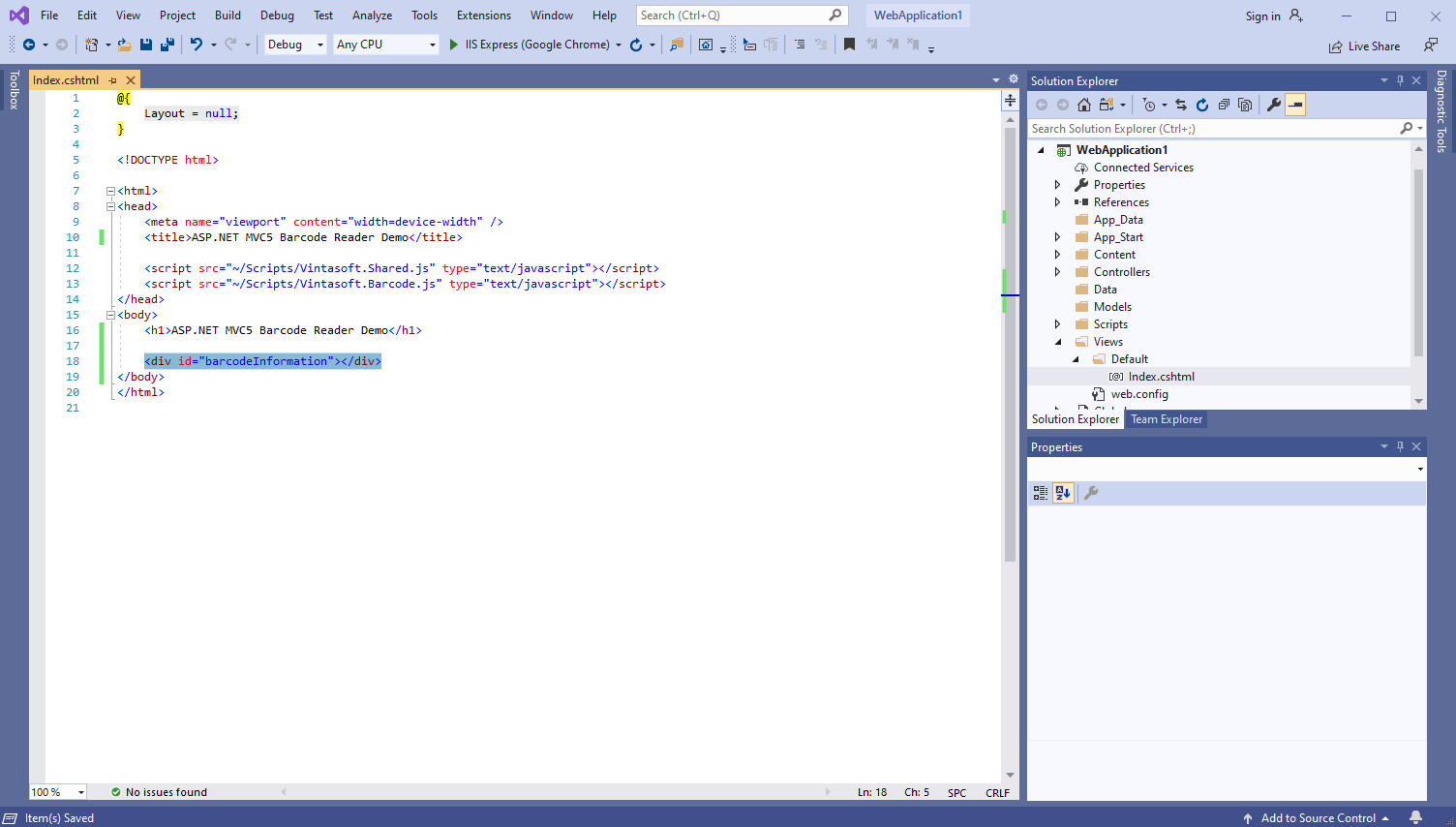
    • Add HTML markup (a div element that will display barcode recognition result) to the web view:

      Here is HTML markup code:
      <div id="barcodeInformation"></div>
      
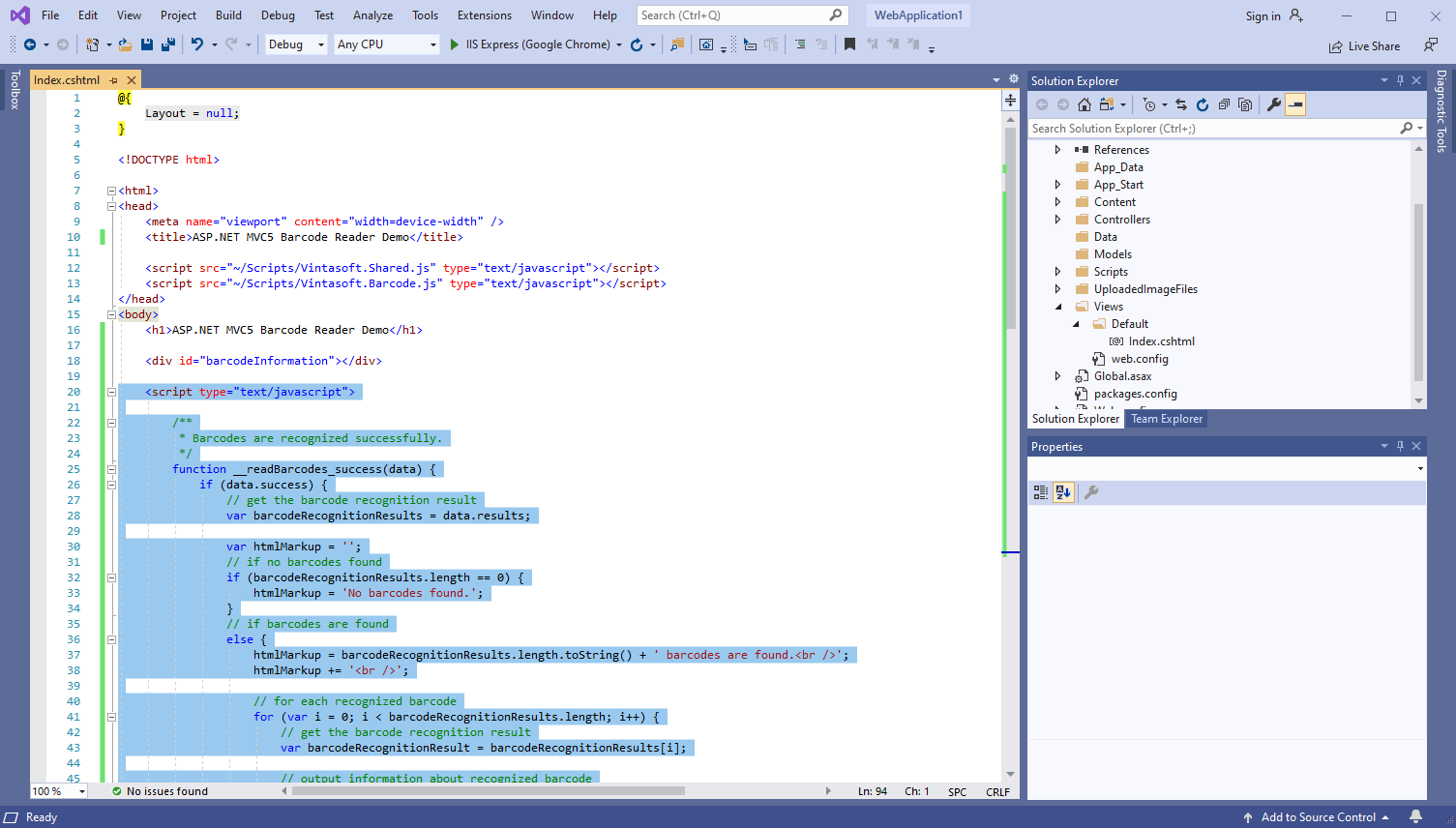
    • Add JavaScript code that recognizes barcodes in image and displays barcode recognition result:

      Here is JavaScript code that recognizes barcodes in image and displays barcode recognition result:
      <script type="text/javascript">
      
          /**
           * Barcodes are recognized successfully.
           */
          function __readBarcodes_success(data) {
              if (data.success) {
                  // get the barcode recognition result
                  var barcodeRecognitionResults = data.results;
      
                  var htmlMarkup = '';
                  // if no barcodes found
                  if (barcodeRecognitionResults.length == 0) {
                      htmlMarkup = 'No barcodes found.';
                  }
                  // if barcodes are found
                  else {
                      htmlMarkup = barcodeRecognitionResults.length.toString() + ' barcodes are found.<br />';
                      htmlMarkup += '<br />';
      
                      // for each recognized barcode
                      for (var i = 0; i < barcodeRecognitionResults.length; i++) {
                          // get the barcode recognition result
                          var barcodeRecognitionResult = barcodeRecognitionResults[i];
      
                          // output information about recognized barcode
                          htmlMarkup += '[' + (i + 1) + ':' + barcodeRecognitionResult.barcodeType + ']<br />';
                          htmlMarkup += '  Value: ' + barcodeRecognitionResult.value + '<br />';
                          htmlMarkup += '  Confidence: ' + barcodeRecognitionResult.confidence + '<br />';
                          htmlMarkup += '  Reading quality: ' + barcodeRecognitionResult.readingQuality.toFixed(2) + '<br />';
                          htmlMarkup += '  Threshold: ' + barcodeRecognitionResult.threshold + '<br />';
                          htmlMarkup += '  Region: ' +
                              'LT=(' + barcodeRecognitionResult.region.leftTop.x + ',' + barcodeRecognitionResult.region.leftTop.y + '); ' +
                              'RT=(' + barcodeRecognitionResult.region.rightTop.x + ',' + barcodeRecognitionResult.region.rightTop.y + '); ' +
                              'LB=(' + barcodeRecognitionResult.region.leftBottom.x + ',' + barcodeRecognitionResult.region.leftBottom.y + '); ' +
                              'RB=(' + barcodeRecognitionResult.region.rightBottom.x + ',' + barcodeRecognitionResult.region.rightBottom.y + '); ' +
                              'Angle=' + barcodeRecognitionResult.region.angle.toFixed(1) + '°<br />';
      
                          htmlMarkup += '<br />';
                      }
                  }
      
                  var barcodeInformationElement = document.getElementById("barcodeInformation");
                  barcodeInformationElement.innerHTML = htmlMarkup;
              }
          }
      
          /**
           * Barcode recognition is failed.
           */
          function __readBarcodes_fail(data) {
              // show information about error
              alert(data.errorMessage);
          }
      
      
          // set the session identifier
          Vintasoft.Shared.WebImagingEnviromentJS.set_SessionId("SessionID");
      
          // create service that allows to recognize barcodes
          var barcodeService = new Vintasoft.Shared.WebServiceControllerJS("vintasoft/api/MyVintasoftBarcodeApi");
      
          // create the barcode reader
          var barcodeReader = new Vintasoft.Barcode.WebBarcodeReaderJS(barcodeService);
          // specify that Code39 barcode must be searched
          barcodeReader.get_Settings().set_BarcodeType(new Vintasoft.Barcode.WebBarcodeTypeEnumJS("Code39"));
      
          // create web image that references to a file "AllSupportedBarcodes.png" in directory "/UploadedImageFiles/SessionID/"
          var imageSource = new Vintasoft.Shared.WebImageSourceJS("AllSupportedBarcodes.png");
          var image = new Vintasoft.Shared.WebImageJS(imageSource, 0);
      
          // send an asynchronous request for barcode recognition
          barcodeReader.readBarcodes(image, this.__readBarcodes_success, this.__readBarcodes_fail);
      </script>
      
      
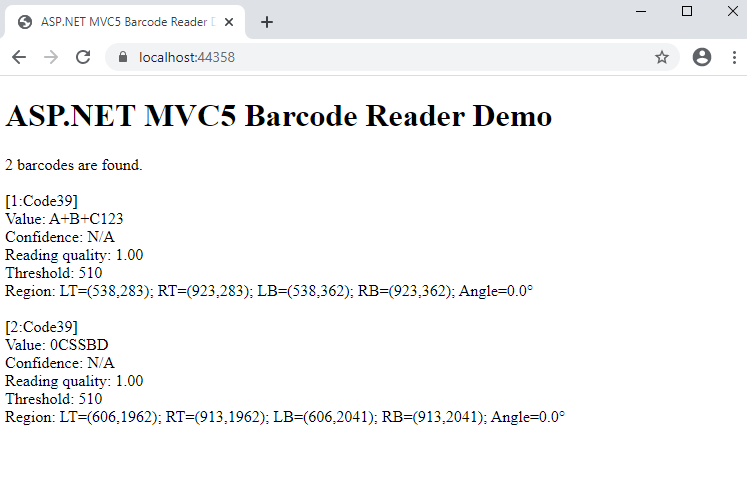
  9. Run the ASP.NET MVC5 application and see the result.